Troubleshooting guide
Windows Microphone Not Working Bluetooth: Fix the 'Microphone Not Available' Error
Category: Audio Devices
You’re on a Windows 11 PC with a Bluetooth headset, audio output works, but apps can’t select the headset microphone and show ‘microphone is not available.’ This guide fixes that specific failure.
Check the input device and privacy settings
Open Settings > System > Sound. Under Input, confirm your Bluetooth headset is listed and selected. If it’s not listed, click Add device and pair it again. Next, go to Settings > Privacy & security > Microphone and ensure Microphone access is on and Let apps access your microphone is on for the app you’re using. If the headset appears but shows ‘Not plugged in,’ proceed to the next section.
Re-enable the headset microphone in Device Manager
Right-click Start and open Device Manager. Expand Audio inputs and outputs. Look for your headset microphone; if it has a down-arrow, right-click and choose Enable device. Then expand Sound, video and game controllers, right-click your Bluetooth audio device, and select Update driver > Search automatically. If Windows reports the best driver is already installed, right-click the device and choose Uninstall device, then restart the PC and re-pair the headset. This clears a common windows microphone not working bluetooth state where the input endpoint is stuck.
Verify with a test recording
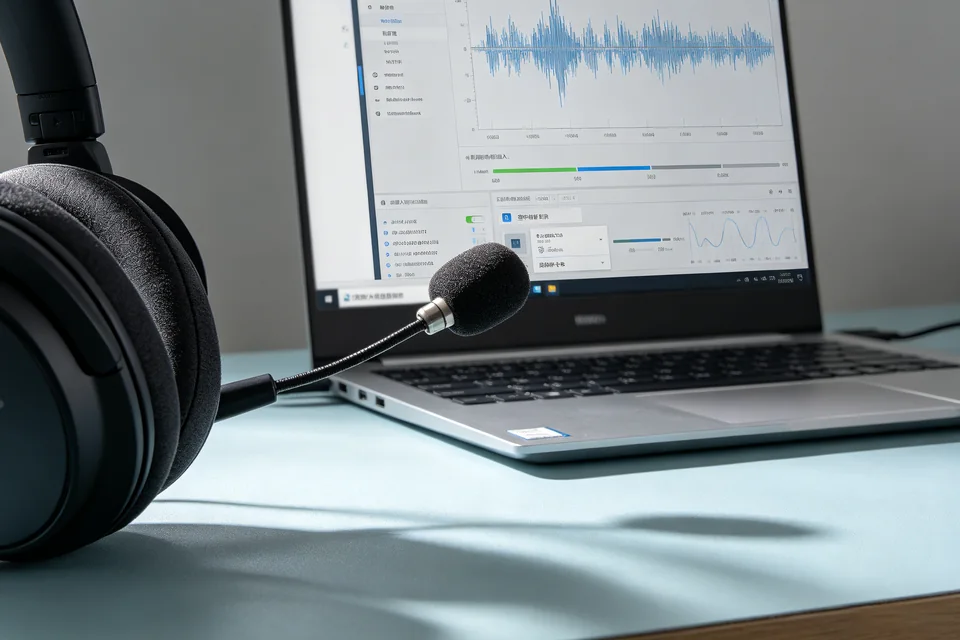
Open Settings > System > Sound > Input and speak into the mic; the test bar should move. Then open Voice Recorder and record a short clip. Play it back: if you hear your voice, the microphone is working. If the bar stays flat, return to Sound settings and set the headset microphone as the default input.
Rollback note
If uninstalling the driver made things worse, open Device Manager, right-click the device, choose Properties > Driver > Roll Back Driver. If rollback is unavailable, re-pair the headset. For a guided diagnosis,