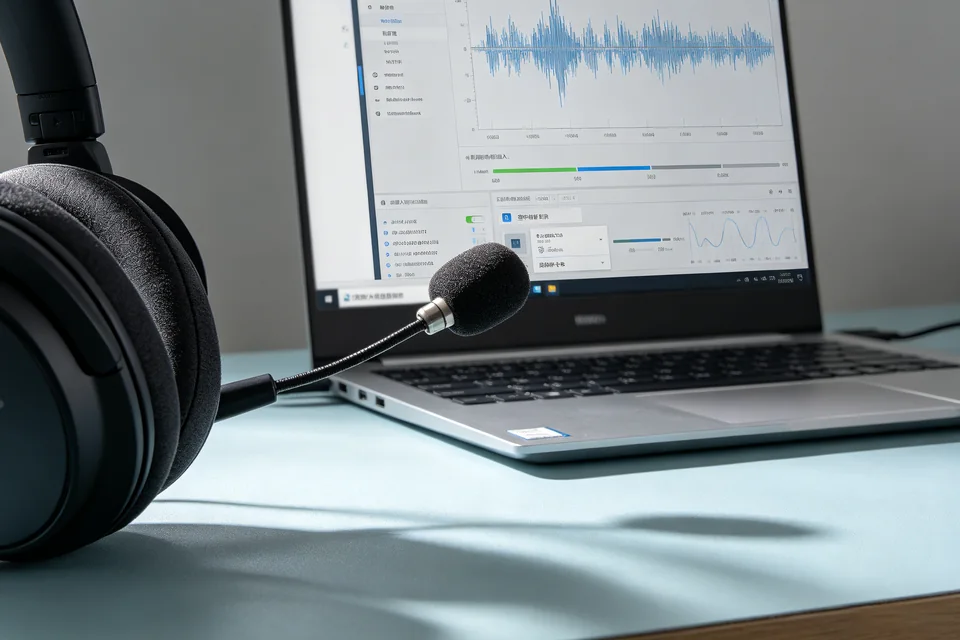
Troubleshooting guide
Windows 11 Bluetooth Headset Connected but No Sound: Fix the Silent Output
Category: Audio Devices
Your Windows 11 PC shows the Bluetooth headset connected, but the earpieces stay silent and you’re not sure where to start.
Confirm the active output device
Open Settings > System > Sound. Under Output, check which device is selected. If you see two entries for your headset (often “Headphones” and “Headset”), select the one labeled Headphones for playback. Result: the checkmark moves to that entry. If the meter beside it stays flat during playback, continue below.
Check the volume and mute state
With the headset selected, click it and confirm the volume slider is above zero and the mute icon is not active. Also check the physical volume wheel on the headset itself. Result: if the slider was at zero or muted, sound should return immediately after adjusting.
Disconnect and reconnect the headset
Go to Settings > Bluetooth & devices. Remove the headset, then pair it again. This clears a stale connection state that can leave the output silent. Result: after re-pairing, test sound again. If it remains silent, this is a classic windows bluetooth headset no sound symptom that often points to the audio endpoint rather than the pairing.
Restart the Bluetooth and audio services
Open Services (services.msc), restart Bluetooth Support Service, then restart Windows Audio and Windows Audio Endpoint Builder. Result: services return to Running. Play a short clip to test.
Verification test
Play a known audio file and watch the volume meter in Settings > System > Sound. A moving meter with audible sound confirms the fix. A flat meter means the endpoint is still not receiving audio.
Rollback note
If changes make things worse, re-pair the headset and set the previous output device as default. For deeper diagnosis,