Troubleshooting guide
Windows 11: Bluetooth Headset Shows Connected but Plays No Sound — Output and Mic Check
Category: Audio Devices
Your Windows 11 PC lists the Bluetooth headset as connected, yet no audio comes out of it. That usually means Windows is sending sound to a different endpoint or the headset’s output profile is not active. Work through this Windows Bluetooth Headset Connected but No Sound: Check Output and Mic sequence before changing drivers.
Confirm the active output device
Open Settings > System > Sound. Under Output, confirm the headset is selected, not your monitor or speakers. If two entries exist (for example, Headset and Headphones), choose the one labeled Headset for calls or the stereo entry for media. Play a short system sound. If the volume meter moves but you hear nothing, the endpoint is wrong; if the meter stays flat, the app is muted or routed elsewhere.
Check the microphone side
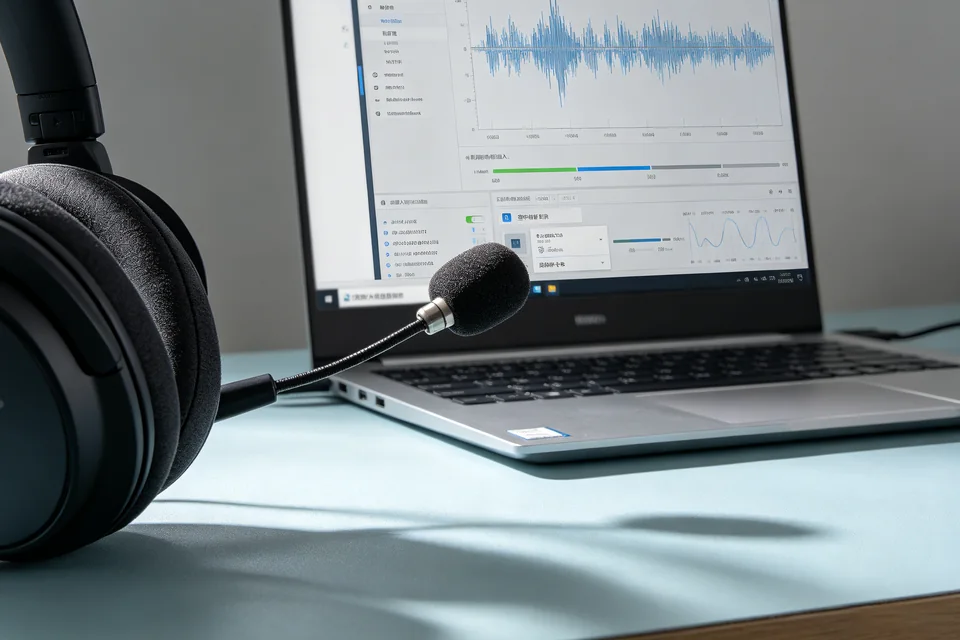
Still in Sound, open Input and select the headset microphone. Speak and watch the input meter. A flat meter means Windows is not receiving audio from the mic; a moving meter means the mic works and the problem is output-only.
Verify with a controlled test
Open Sound > More sound settings > Playback, select the headset, click Test, and listen for the chime. Then use the Recording tab to listen to the microphone. This separates a device fault from an app routing issue.
Rollback and recovery
If you recently changed default devices, right-click the previous device in Playback and choose Set as Default Device to restore it. If the headset disappears entirely, remove it in Settings > Bluetooth & devices, then pair it again.
If the meter still stays flat after these checks,
Ask for help with your Sound panel screenshots.