Troubleshooting guide
Silent Bluetooth Headset on Windows 11? Check the Output Device First
Category: Audio Devices
Your Bluetooth headset says connected in Windows 11, but the earpieces stay silent, so you are stuck before any real diagnosis.
Confirm the active output device
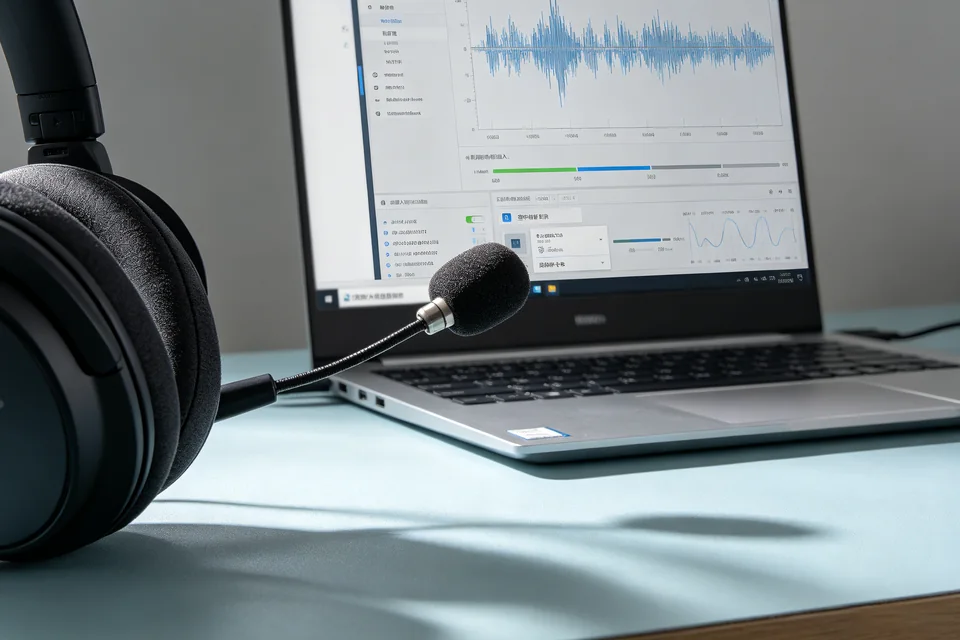
Open Settings > System > Sound. Under Output, look for your headset name. If it is not selected, click it. Then check the volume slider and the mute icon. If the slider is at zero or muted, raise it and unmute. Expected result: the headset appears as the selected output and the meter moves when you play audio. If the meter moves but you hear nothing, continue below.
Rule out the classic headset/headphones split
Bluetooth headsets often expose two profiles: Stereo (music) and Hands-Free (calls). In Sound settings, click your headset and set it as the default device for both output and input. If only the Hands-Free option produces sound, the stereo profile may be failing. This is a common cause of windows 11 no sound bluetooth headphones even when the connection looks healthy.
Run a quick verification test
Play a short local audio file. While it plays, open Sound settings and watch the output meter. If the meter moves and you hear nothing, the issue is likely the headset’s own volume or a profile mismatch. If the meter does not move, Windows is still routing audio elsewhere.
Rollback note
If you changed default devices or disabled enhancements, note the original settings so you can restore them. Re-enable any disabled device before finishing.
If these checks do not restore sound,
Ask for help with your Sound settings screenshot and headset model.