Troubleshooting guide
Bluetooth Microphone Not Working Windows: Fix the 'Microphone Not Available' Error
Category: Audio Devices
You’re on a Windows 11 PC with a Bluetooth headset, audio plays fine, but apps like Teams or Voice Recorder say the microphone is not available. This is a common bluetooth microphone not working windows issue, and it usually means Windows is using the wrong input device or the headset’s mic profile isn’t active.
Check the input device in Sound settings
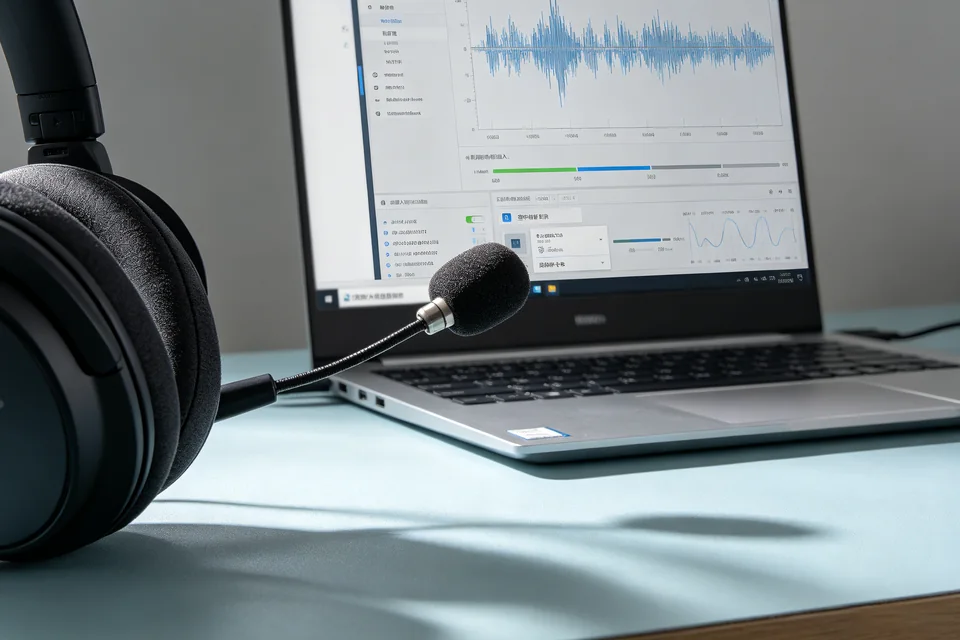
Right-click the speaker icon in the taskbar and choose Sound settings. Under Input, select your Bluetooth headset microphone. If it’s not listed, click Manage sound devices and enable it. Then speak into the mic: the input level bar should move. If it stays flat, Windows isn’t receiving audio from the headset.
Verify the headset’s microphone profile
Open Control Panel > Hardware and Sound > Sound > Recording. Look for your headset. If you only see a stereo output device, the headset may be connected in ‘Headset’ mode but not ‘Hands-Free’ mode. Disconnect and reconnect the headset, then check again. A working mic shows a green check and responds to speech.
Run a quick verification test
Open Voice Recorder and record a short clip. Play it back. If you hear your voice, the mic works. If not, go to Settings > Privacy > Microphone and ensure microphone access is on for apps. Also, in Sound > Recording, double-click your headset mic, go to Levels, and raise the microphone level to 80.
Rollback note
If you changed settings and the mic stops working entirely, return to Sound > Recording, right-click the headset, and choose Set as Default Device. If you installed a new audio driver, use Device Manager to roll it back.
Still stuck?
Ask for help and we’ll walk through your exact device.