Troubleshooting guide
Bluetooth Headset Microphone Not Working Windows 11: Fix the 'Microphone Not Available' Error
Category: Audio Devices
You’re on a Windows 11 PC with a Bluetooth headset, audio plays fine, but apps show the microphone as not available and won’t let you select it. This is a common bluetooth headset microphone not working windows 11 issue, and it usually comes down to the headset being registered as an output-only device or the Hands-Free profile not activating.
Check the Sound Control Panel
Open Settings > System > Sound > More sound settings. On the Playback tab, find your headset and click Properties. Under the Services tab, confirm Hands-Free Telephony is checked. If it’s unchecked, check it, click Apply, and restart the app you’re testing. If the Services tab is missing entirely, the headset driver is output-only and you’ll need to remove and re-pair the device.
Verify Input Devices
Still in Sound settings, go to the Recording tab. Right-click in the empty area and ensure Show Disabled Devices and Show Disconnected Devices are checked. Look for your headset’s microphone entry. If it appears but is disabled, right-click and Enable it. If it doesn’t appear at all, proceed to re-pairing.
Re-pair the Headset
Go to Settings > Bluetooth & devices, remove the headset, then pair it again. During pairing, accept any prompt about phone audio or hands-free calling. After reconnecting, return to the Recording tab and set the headset microphone as the default input.
Verification Test
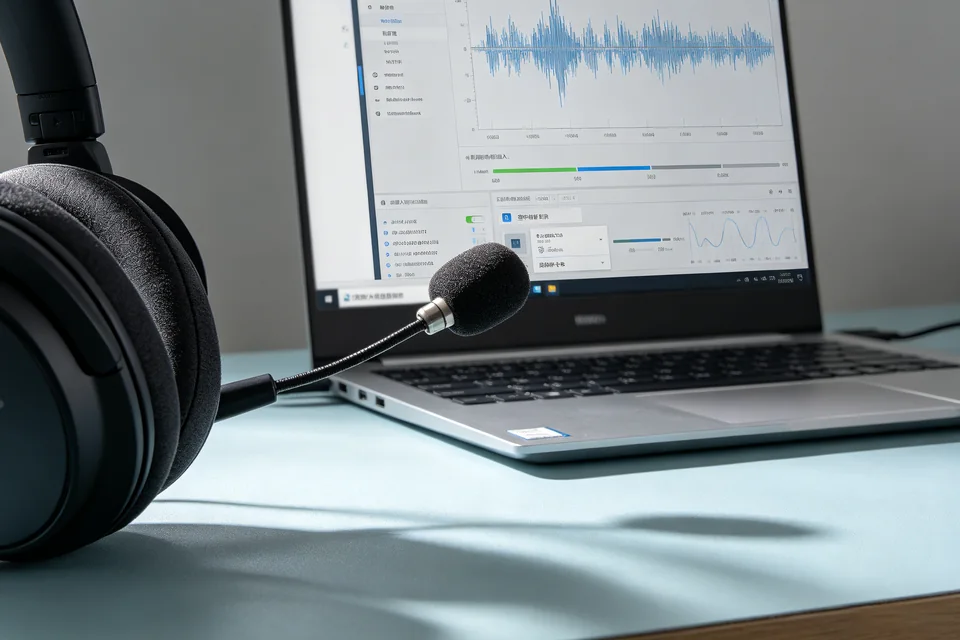
Open Settings > System > Sound > Input and speak into the mic. The input level bar should move. If it stays flat, the microphone is still not being routed. As a rollback, you can re-enable any previously disabled audio device and set your original microphone as default to restore your prior setup.
If the microphone still isn’t available after these steps,
Ask for help with your device details.