Troubleshooting guide
Silent Bluetooth Headset on Windows 11: Check the Output Device First
Category: Audio Devices
Your Windows 11 PC says the Bluetooth headset is connected, but you hear nothing through it. That usually means Windows is sending audio to a different output device, so let’s verify that first.
Confirm the active output device
Open Settings > System > Sound. Under Output, check which device is selected. If you see anything other than your headset, click it and choose your Bluetooth headset. Then play a short system sound. If you hear it, the issue was device selection. If the headset is already selected but still silent, continue.
Check the volume and mute state
With the headset selected, click it to open its properties. Make sure the volume slider is above zero and the mute icon is not active. Also check the physical volume wheel or mute button on the headset itself. A muted headset will show as connected but produce no sound.
Run a verification test
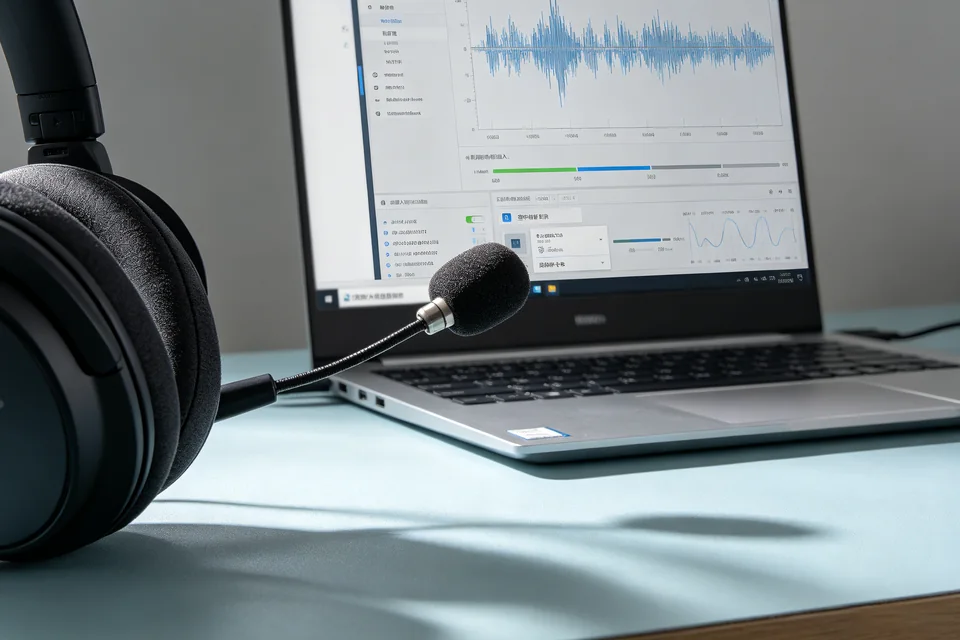
Play a known audio file or use the Test button under Sound settings. Watch the volume meter next to the headset in the Output list. If the meter moves but you hear nothing, the problem is on the headset side or the Bluetooth link. If the meter does not move, Windows is still routing audio elsewhere.
Roll back a recent change
If you recently updated the Bluetooth driver or installed new audio software, open Device Manager > Bluetooth, right-click your adapter, and choose Properties > Driver > Roll Back Driver. Restart and test again. This reverses a change that may have broken output routing.
If these checks do not restore sound, the remaining causes need a controlled diagnosis of the Bluetooth profile and driver stack.
Ask for help and describe what the volume meter did during the test. That single detail will point to the next step for your bluetooth headphones connected but no sound windows 11 case.